CHEECENT CR102 Print Server: Ethernet Network Printer Sharing for Home and Office
The Importance of Choosing the Right Printer for Your Environment
In today’s digital landscape, the role of printers extends far beyond simple document duplication. Whether in a home office, educational institution, or corporate setting, the choice of printing technology significantly impacts productivity and operational efficiency. Modern printing needs often require devices that can handle diverse tasks—from high-volume text printing to specialized label creation—while maintaining reliability and compatibility across multiple platforms. The right printer must balance performance metrics like print speed and resolution with the practical considerations of connectivity, maintenance, and scalability. For environments where shared printing is essential, the integration of network capabilities becomes a critical factor. A printer that can seamlessly transition from a standalone device to a networked solution can reduce hardware costs and simplify resource management. This review evaluates the CHEECENT CR102 print server as a solution for users seeking to convert existing USB printers into network-ready devices. By analyzing its compatibility, setup requirements, and performance characteristics, we provide a data-driven assessment of its suitability for various printing scenarios.
Quick Overview
| Feature | Details |
|---|---|
| Printer Type | USB-to-Ethernet Print Server |
| Supported Devices | Inkjet, Laser, Dot Matrix, Thermal Label Printers |
| Operating Systems | Windows 10, Linux, macOS |
| Connectivity | Ethernet (LAN) |
| Port Configuration | 2 USB Ports |
| Design | Metal Shell, Mounting Hole |
| Power Requirements | No External Power (via Ethernet) |
| Compatibility Notes | Non-WiFi, Requires Driver Installation |
| Certifications | No Specific Certifications Mentioned |
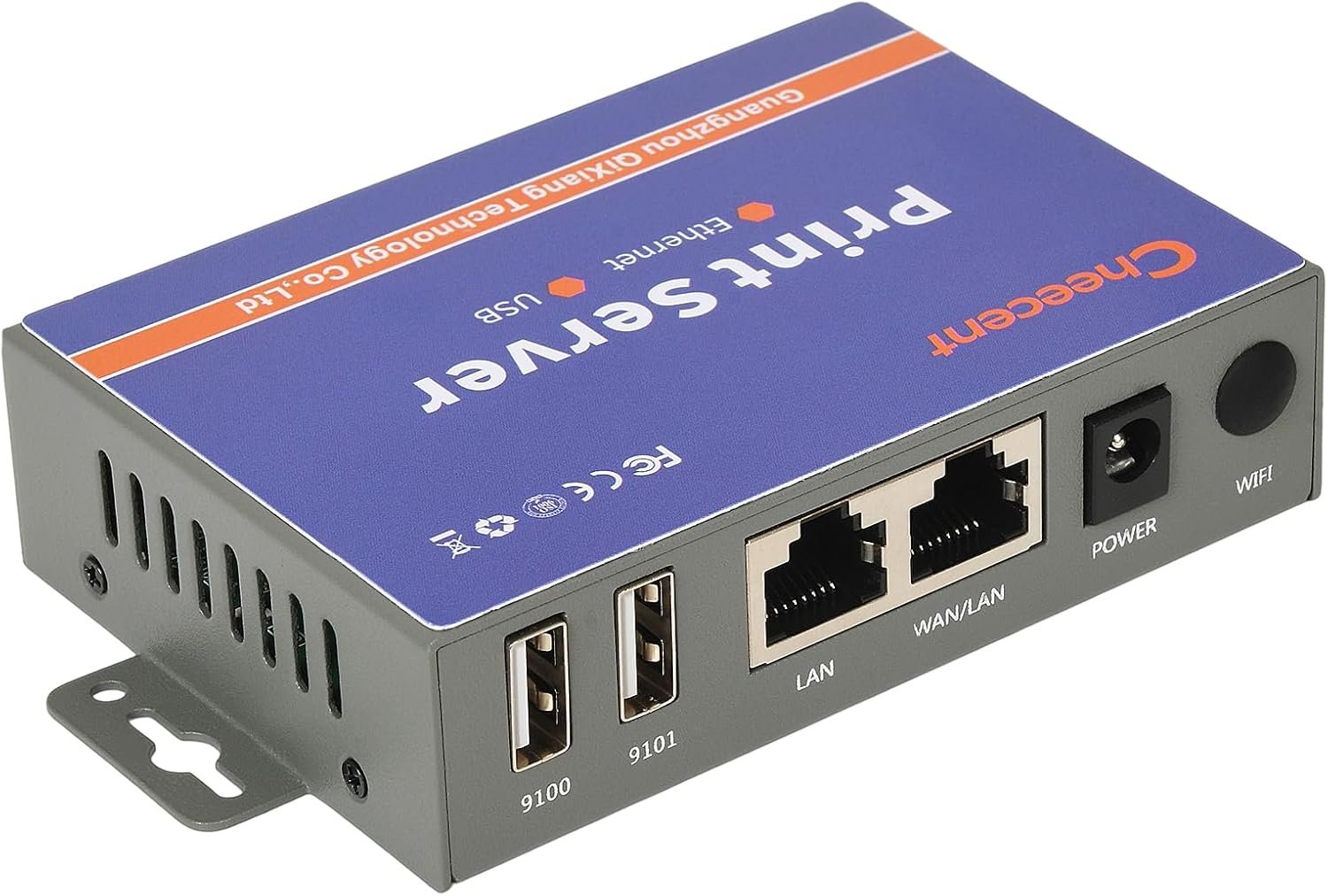
The CHEECENT CR102 print server is designed to transform legacy USB printers into networked devices, enabling shared printing across Ethernet-connected computers. Its dual USB ports allow simultaneous connection to two printers, while its compact, metal-encased design facilitates easy installation in both home and office environments. The device requires no external power source, drawing energy through the Ethernet connection, which simplifies setup and reduces clutter. However, its non-WiFi architecture and reliance on driver installation on each networked computer may limit its appeal for users seeking wireless connectivity or out-of-the-box compatibility.

Compatibility and Device Support
The CHEECENT CR102 print server is engineered to bridge the gap between standalone USB printers and networked environments. Its compatibility with a wide range of printer technologies—including inkjet, laser, dot matrix, and thermal label printers—makes it a versatile solution for users with mixed printing needs. The device supports Ethernet networking, allowing multiple computers to access shared printers without the need for direct physical connections. This feature is particularly beneficial in environments where multiple users require access to the same printing resources, such as small businesses or educational institutions. However, its exclusion of support for mobile devices like iPhones, iPads, and Android smartphones represents a notable limitation. The lack of WiFi connectivity means users must rely on wired networks, which may not be ideal for locations with limited Ethernet infrastructure.

Supported Printer Technologies
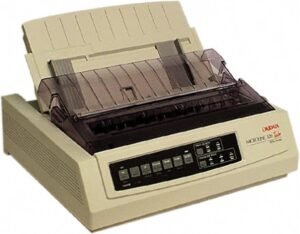
The CR102’s ability to interface with various printer types is rooted in its USB 2.0 architecture, which provides sufficient bandwidth for most standard printing tasks. Inkjet printers, which often require higher data throughput for photo-quality output, may experience performance limitations when connected through this device. Laser printers, which typically operate at lower data rates, are likely to benefit from the CR102’s stability and reliability. Dot matrix printers, commonly used in environments requiring high-speed, low-cost printing, can also leverage the CR102’s dual USB ports for simultaneous operation. Thermal label printers, which are prevalent in logistics and retail, may require specific driver configurations to ensure proper functionality, as noted in the user manual.
Operating System Compatibility
The CR102’s support for Windows 10, Linux, and macOS ensures broad compatibility with modern computing environments. However, users must install printer drivers on each networked computer, which can be a barrier for those unfamiliar with the setup process. The absence of support for Chromebooks and Android devices means the CR102 is not a universal solution for all users. This limitation may be significant for organizations with mixed device ecosystems or for individuals who rely on mobile printing for remote work. The device’s reliance on traditional Ethernet connections also means it cannot support newer wireless printing standards, which could affect its relevance in environments where WiFi is the primary connectivity method.
Network Architecture and Setup Requirements
The CR102’s Ethernet-based design requires a stable local network to function optimally. Users must connect the device to a router using an Ethernet cable, then configure the printer settings on each connected computer. This setup process, while straightforward, necessitates a basic understanding of network configuration. The device’s lack of a built-in power supply simplifies installation but also means it cannot operate independently of the network. For users in environments with limited Ethernet access, this could pose a challenge. Additionally, the CR102 does not support advanced networking features like VLAN segmentation or Quality of Service (QoS) prioritization, which may be necessary for high-volume printing operations.
Setup and Installation Process
The CR102’s setup process is designed to be user-friendly, with detailed instructions provided in the included manual and video guides. The device requires a two-step configuration: first, connecting the USB printers to the CR102’s ports, and second, linking the print server to the local network via an Ethernet cable. This approach ensures that the print server functions as a dedicated network node, allowing multiple computers to access shared printers without the need for a dedicated host machine. The absence of a power supply means the CR102 does not require an additional power source, which reduces complexity and potential points of failure. However, the necessity of driver installation on each computer may be a drawback for users who prefer plug-and-play solutions. The lack of a built-in web interface for configuration could also make troubleshooting more challenging for less technically inclined users.

Installation and Configuration
To install the CR102, users must first connect the USB printers to the device’s ports. The print server then needs to be connected to the network router via an Ethernet cable, establishing a local network connection. Once the physical connections are made, the user must configure the printer settings on each networked computer by navigating to the ‘Add Printer’ option in the operating system’s settings. This process, while straightforward, requires that the printer drivers are already installed on each computer, which may not be the case for all users. The absence of a built-in web interface means that configuration options are limited to the software provided by the operating system, which could complicate the setup for users unfamiliar with network printer configuration.
User Experience and Support
The CR102 is accompanied by a user manual and video guides that provide step-by-step instructions for setup and configuration. These resources are designed to help users navigate the installation process, even for those with limited technical expertise. However, the lack of a dedicated support team or online forum may leave some users without assistance when encountering configuration issues. The device’s reliance on driver installation on each computer means that users must ensure compatibility with their specific operating system versions, which could be a barrier for those using outdated or unsupported software. The absence of a warranty or support guarantee further emphasizes the importance of following the provided instructions carefully to avoid potential configuration errors.
Performance and Print Quality
The CR102’s performance is primarily determined by the capabilities of the connected printers rather than the print server itself. As a network bridge, the device does not influence print quality, speed, or resolution. Instead, its role is to ensure reliable data transmission between the networked computers and the physical printers. This means that the CR102’s performance metrics are largely dependent on the printer’s own specifications, such as print speed, resolution, and media compatibility. For users requiring high-speed printing, the CR102 can facilitate efficient shared printing by allowing multiple computers to access the same printer simultaneously. However, its lack of advanced networking features may limit its ability to manage high-volume printing tasks or prioritize print jobs based on urgency.

Print Speed and Throughput
The CR102’s impact on print speed is minimal, as it does not process or modify print data. Instead, it acts as a conduit for data transmission between the networked computers and the printers. The print speed is therefore dictated by the printer’s own capabilities, such as its print engine technology and media handling. For example, a laser printer with a high-speed print engine will likely outperform a dot matrix printer in terms of throughput. The CR102’s dual USB ports allow for simultaneous operation of two printers, which can be advantageous in environments requiring parallel printing tasks. However, the device does not support advanced features like print job queuing or priority scheduling, which could be a limitation for users with complex printing workflows.
Media Compatibility and Print Quality
The CR102’s media compatibility is determined by the connected printers, as the device does not alter the print data. This means that users must ensure their printers support the desired media types, such as standard paper, labels, or specialty media. The device’s ability to handle a wide range of printer technologies makes it suitable for environments with mixed media requirements. However, users may need to configure the printer settings on each computer to ensure optimal print quality, particularly for tasks involving graphics or text formatting. The absence of built-in media handling capabilities means that the CR102 cannot adjust print settings based on the type of media used, which is a limitation for users requiring automated media-specific adjustments.

Pros and Cons
Pros
- Versatile Printer Compatibility: The CR102 supports a wide range of printer technologies, including inkjet, laser, dot matrix, and thermal label printers, making it suitable for diverse printing environments.
- Dual USB Ports for Shared Printing: The device’s two USB ports allow simultaneous connection to two printers, enabling efficient shared printing across multiple computers.
- Compact and Durable Design: The metal-encased construction provides a sturdy build, while the compact size facilitates easy installation in both home and office settings.
- No External Power Required: By drawing power through the Ethernet connection, the CR10,2 eliminates the need for an additional power source, simplifying setup and reducing clutter.
- Cross-Platform Support: The device is compatible with Windows 10, Linux, and macOS, ensuring broad compatibility with modern computing environments.
- User-Friendly Setup: Detailed manuals and video guides are provided to assist users through the installation and configuration process, even for those with limited technical expertise.
Cons
- Limited Mobile Device Support: The CR102 does not support WiFi connectivity, which means it cannot be used with mobile devices like iPhones, iPads, or Android smartphones.
- Requires Driver Installation: Users must install printer drivers on each networked computer, which can be a barrier for those unfamiliar with the setup process.
- No Built-In Web Interface: The lack of a dedicated web interface for configuration may complicate troubleshooting and customization for less technically inclined users.
- No Advanced Networking Features: The device does not support advanced networking capabilities like VLAN segmentation or Quality of Service (QoS) prioritization, which could be a limitation for high-volume printing operations.
- No Warranty or Support Guarantee: The absence of a warranty or dedicated support team means users must rely on the provided instructions to avoid configuration errors.
Final Verdict: Who This Printer Is Best For (and Who Should Skip It)
The CHEECENT CR102 print server is best suited for users who need to convert existing USB printers into networked devices in environments with stable Ethernet connectivity. It is particularly ideal for small businesses, educational institutions, and home offices where shared printing is required without the need for wireless connectivity. The device’s compatibility with a wide range of printer technologies and cross-platform support makes it a practical solution for users with mixed computing environments. However, its limitations in mobile device support and advanced networking features make it unsuitable for users requiring wireless printing capabilities or those operating in environments with complex printing workflows. For users seeking a plug-and-play solution with broader device compatibility, the CR102 may not be the optimal choice. Its strengths lie in providing a reliable, cost-effective way to extend the life of existing printers in wired network settings.
Frequently Asked Questions (FAQs)
Can the CHEECENT CR102 print server be used with mobile devices like smartphones or tablets?
The CHEECENT CR102 print server does not support WiFi connectivity, so it cannot be used with mobile devices such as iPhones, iPads, or Android smartphones. It is designed for Ethernet-based networks and requires a wired connection to function.
What operating systems are compatible with the CHEECENT CR102 print server?
The CHEECENT CR102 is compatible with Windows 10, Linux, and macOS. It does not support Chromebooks or Android-based devices, so users must ensure their computers meet these system requirements.
Does the CHEECENT CR102 print server require a dedicated power source?
No, the CHEECENT CR102 does not require an external power source. It draws power through the Ethernet connection, which simplifies installation and reduces clutter.
How many USB printers can the CHEECENT CR102 support simultaneously?
The CHEECENT CR102 has two USB ports, allowing simultaneous connection to two USB printers. This enables shared printing across multiple computers within the same Ethernet network.
What steps are required to set up the CHEECENT CR102 print server?
To set up the CR102, connect the USB printers to the device’s ports, then link the print server to the network router using an Ethernet cable. Users must then configure the printer settings on each networked computer by navigating to the ‘Add Printer’ option in their operating system’s settings.
Is the CHEECENT CR102 suitable for high-volume printing environments?
The CHEECENT CR102 is designed for environments with stable Ethernet connectivity and shared printing needs. While it supports a wide range of printer technologies, it does not include advanced networking features like VLAN segmentation or QoS prioritization, which may be necessary for high-volume printing operations.
What support options are available for the CHEECENT CR102?
The CHEECENT CR102 comes with a user manual and video guides to assist with setup and configuration. However, there is no dedicated support team or warranty provided, so users must rely on the included resources for assistance.
Can the CHEECENT CR102 be used with thermal label printers?
Yes, the CHEECENT CR102 is compatible with thermal label printers. However, users may need to configure the printer settings on each connected computer to ensure proper functionality, as noted in the user manual.